After registering, you will receive an email from TN Arts Commission Grants Analyst Lee Baird with your username and password. You are advised to change your password for security reasons. Login to the system using your username and the computer-generated password listed in the email. Note: usernames can NOT be changed.
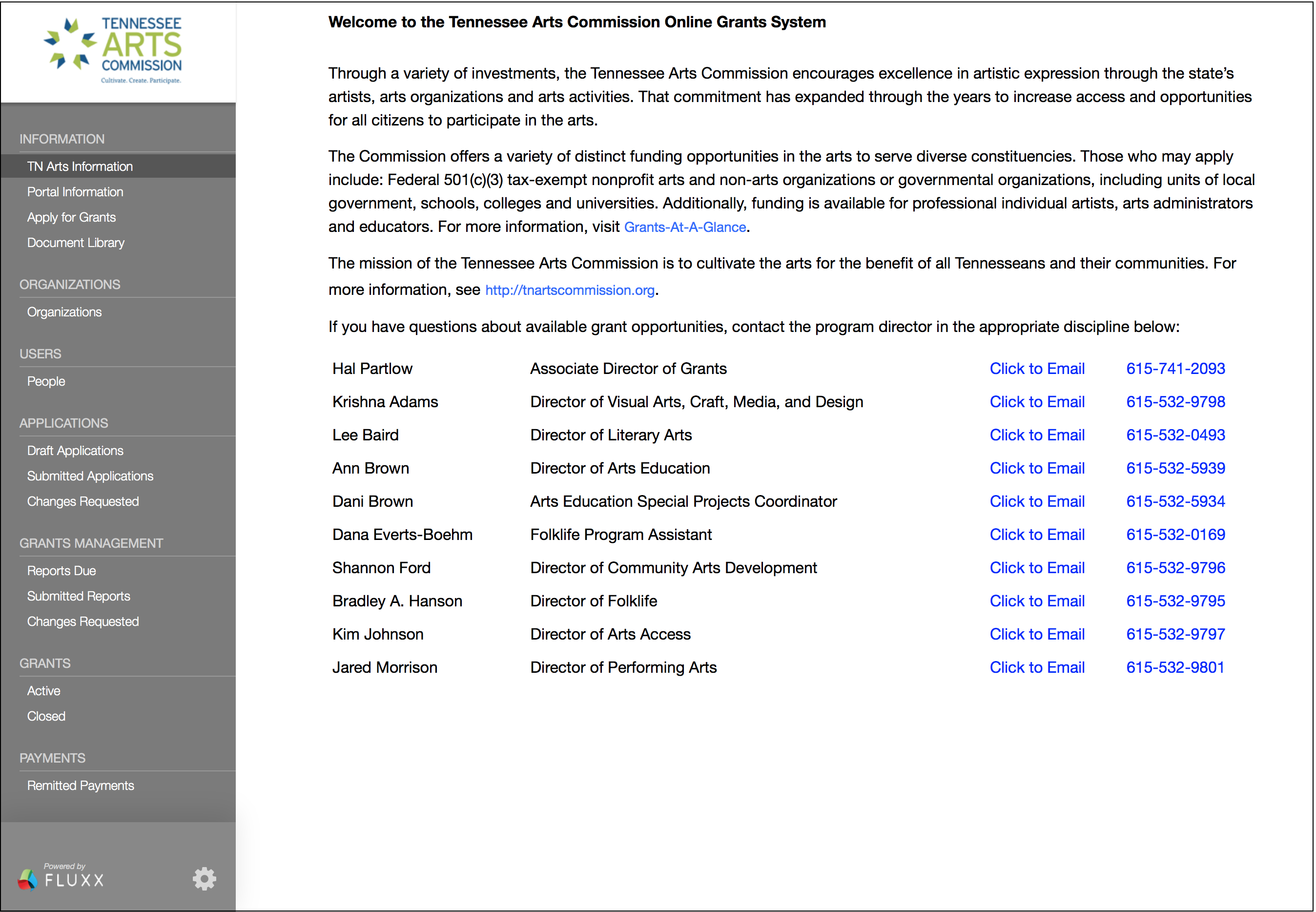
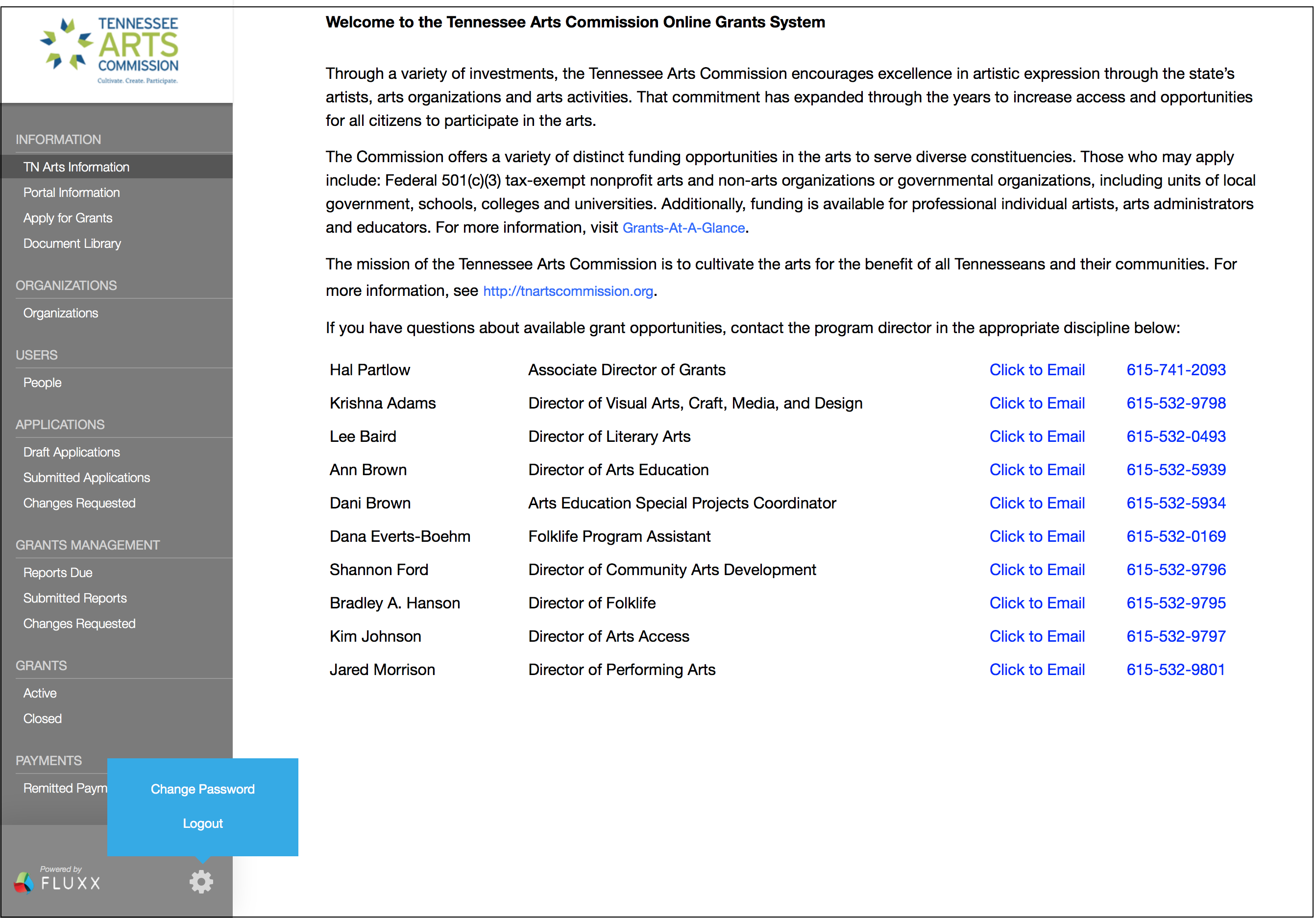
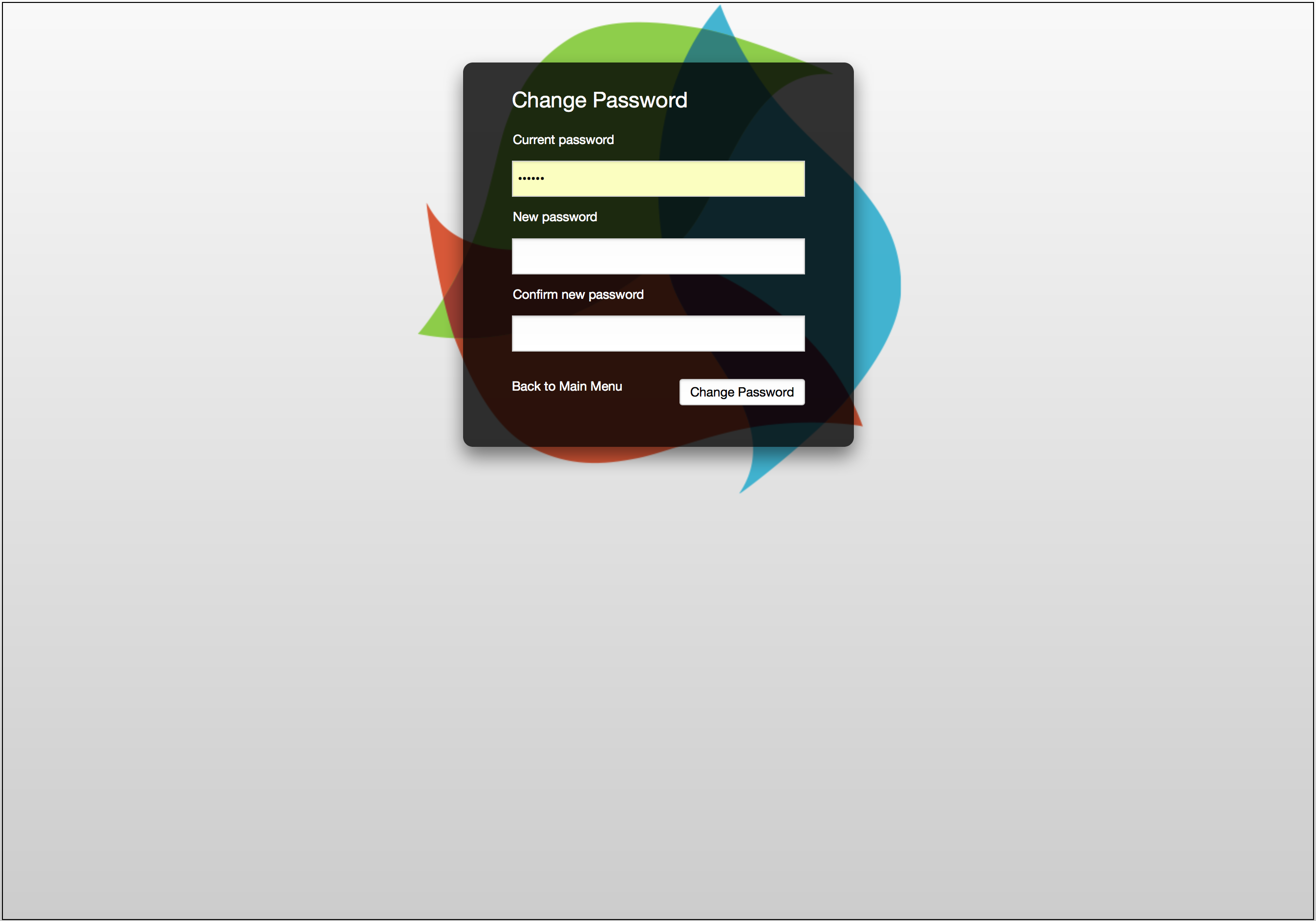
You will be directed to the TN Arts Commission Information page (slide 1). To change your password, simply locate the change password tab located under the cog icon at the bottom of the left-side menu (slide 2). Enter and confirm your new password, then click on the “Change Password” button (slide 3). After seeing the confirmation on the same screen that your new password is successful, you can click the “Back to Main Menu” link.